Variables
Variables are the dynamic parts of your template — placeholders that get replaced with actual values when a PDF is generated. Use {{ variableName }} in your HTML to reference them.
Variable Types
PDF Generator supports three variable types:
Plain Variables
A single value — like a name, date, or number.
{{ customerName }}
{{ invoiceDate }}
{{ totalAmount }}
Object Variables
Structured data with named fields — like an address or company details. Reference fields with dot notation:
{{ company.name }}
{{ company.street }}
{{ company.city }}
When defining an object variable, you specify the column names (fields) that make up the object.
Table Variables
Row-based data for repeating content — like invoice line items. Use in your HTML with table iteration:
  <tr data-template-variable="lineItems">
    <td>{{ row.description }}</td>
    <td>{{ row.quantity }}</td>
    <td>{{ row.price }}</td>
  </tr>
or use the Jinja-style loop syntax:
{% for row in lineItems %}
  <tr>
    <td>{{ row.description }}</td>
    <td>{{ row.quantity }}</td>
    <td>{{ row.price }}</td>
  </tr>
{% endfor %}
Table variables support named columns and column-level data types.
Data Types
Each variable has a data type that determines how it's displayed and validated in the generation form:
| Type | Description | Example |
|---|---|---|
| String | Free text input | Names, descriptions |
| Number | Numeric input | Quantities, amounts |
| Date | Date picker | Invoice dates, deadlines |
| Choice | Dropdown selector | Status, category options |
| Signature | Signature pad | Sign-off fields |
| Autonumber | Auto-incrementing counter | Invoice numbers, IDs |
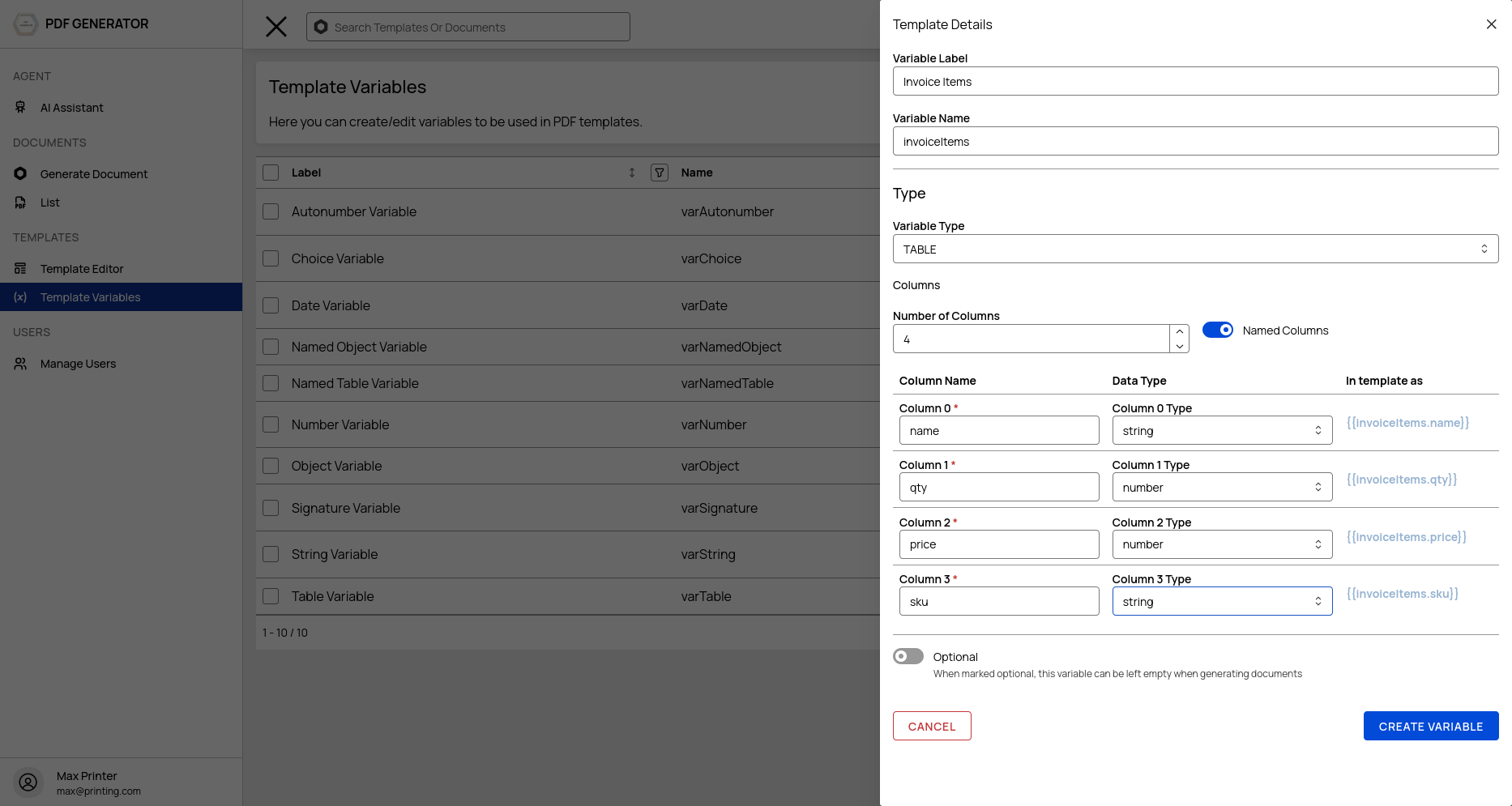
Autonumber Variables
Autonumber variables automatically increment each time a document is generated. Configure:
- Current Value — The starting number
- Format String — How the number is displayed (e.g.,
INV-{0000}producesINV-0042)
Choice Variables
Choice variables present a dropdown in the generation form. Define the options in the variable's data options — each option has a label (shown to the user) and a value (inserted into the template).
Predefined Variables
PDF Generator provides built-in variables that are always available — no definition needed:
| Variable | Description |
|---|---|
{{ pageNumber }} | Current page number |
{{ totalPages }} | Total page count |
{{ user.fullName }} | Current user's display name |
{{ user.address.street }} | User's street address |
{{ user.address.city }} | User's city |
{{ user.address.postalCode }} | User's postal code |
{{ user.address.country }} | User's country |
{{ organization.name }} | Organization name |
{{ organization.slug }} | Organization slug |
{{ organization.street }} | Organization street address |
{{ organization.city }} | Organization city |
{{ organization.postalCode }} | Organization postal code |
{{ organization.country }} | Organization country |
{{ organization.phoneNumber }} | Organization phone number |
Managing Variables
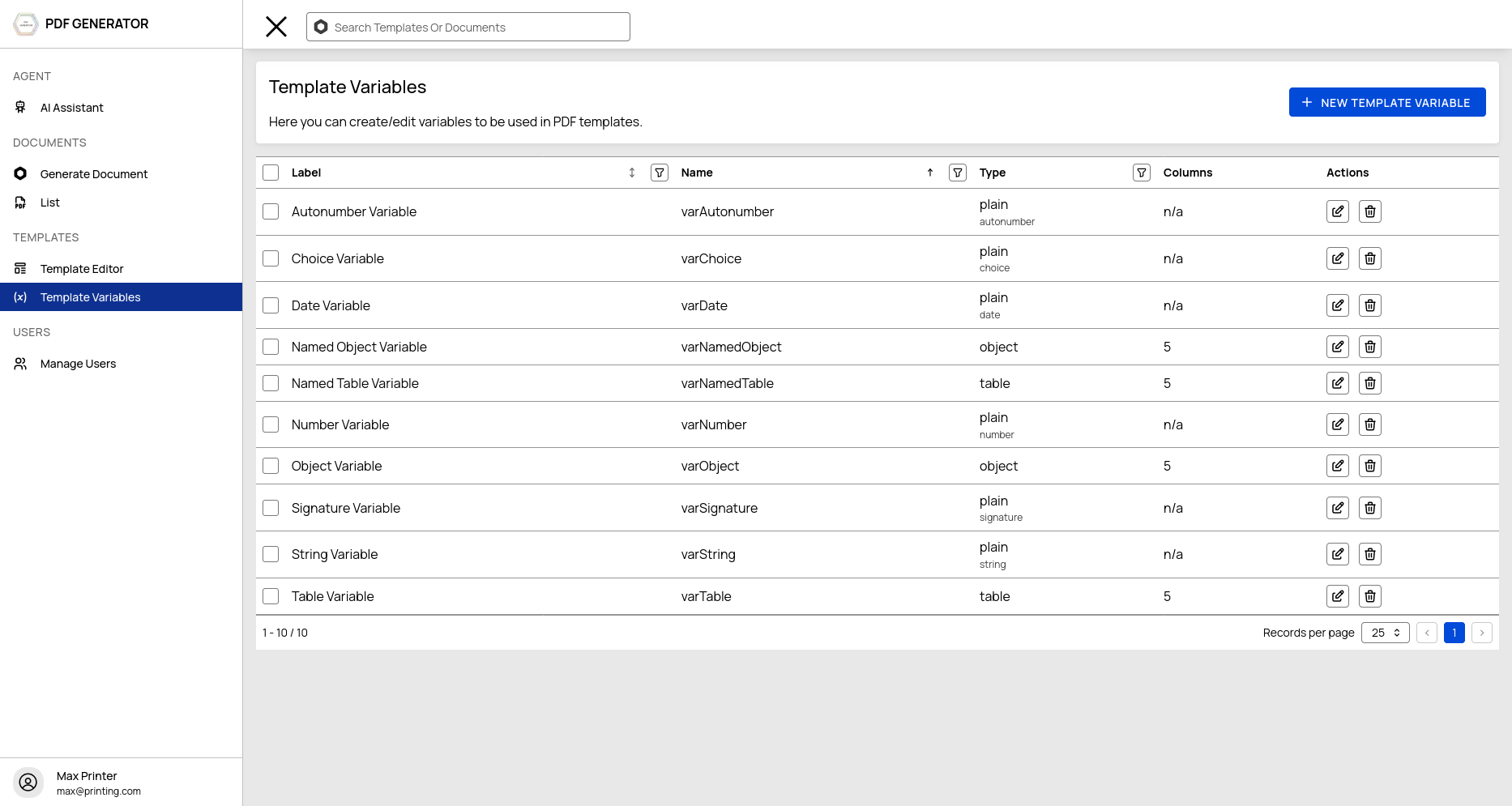
Navigate to Template Variables from the sidebar to view all variables in a data table.
Filtering
Filter variables by template using the filter controls at the top of the table. This helps you focus on the variables relevant to a specific template.
Bulk Import/Export
Use CSV or JSON import/export for batch variable management:
- Export — Download all variables as CSV or JSON
- Import — Upload a CSV or JSON file to create multiple variables at once
This is useful when:
- Migrating variables between environments
- Defining large sets of variables from a spreadsheet
- Backing up your variable definitions
Using Variables in Templates
Reference variables in your HTML using the {{ variableName }} syntax. For object variables, use dot notation: {{ object.field }}. For table variables, use {% for row in variableName %}...{% endfor %} blocks.
Variables are rendered when a document is generated — the generation form is auto-built from your variable definitions.