AI Assistant
The AI Assistant lets you manage templates, variables, and files through natural language conversation. It's powered by large language models and has full access to your template workspace through tool calling.
Getting Started
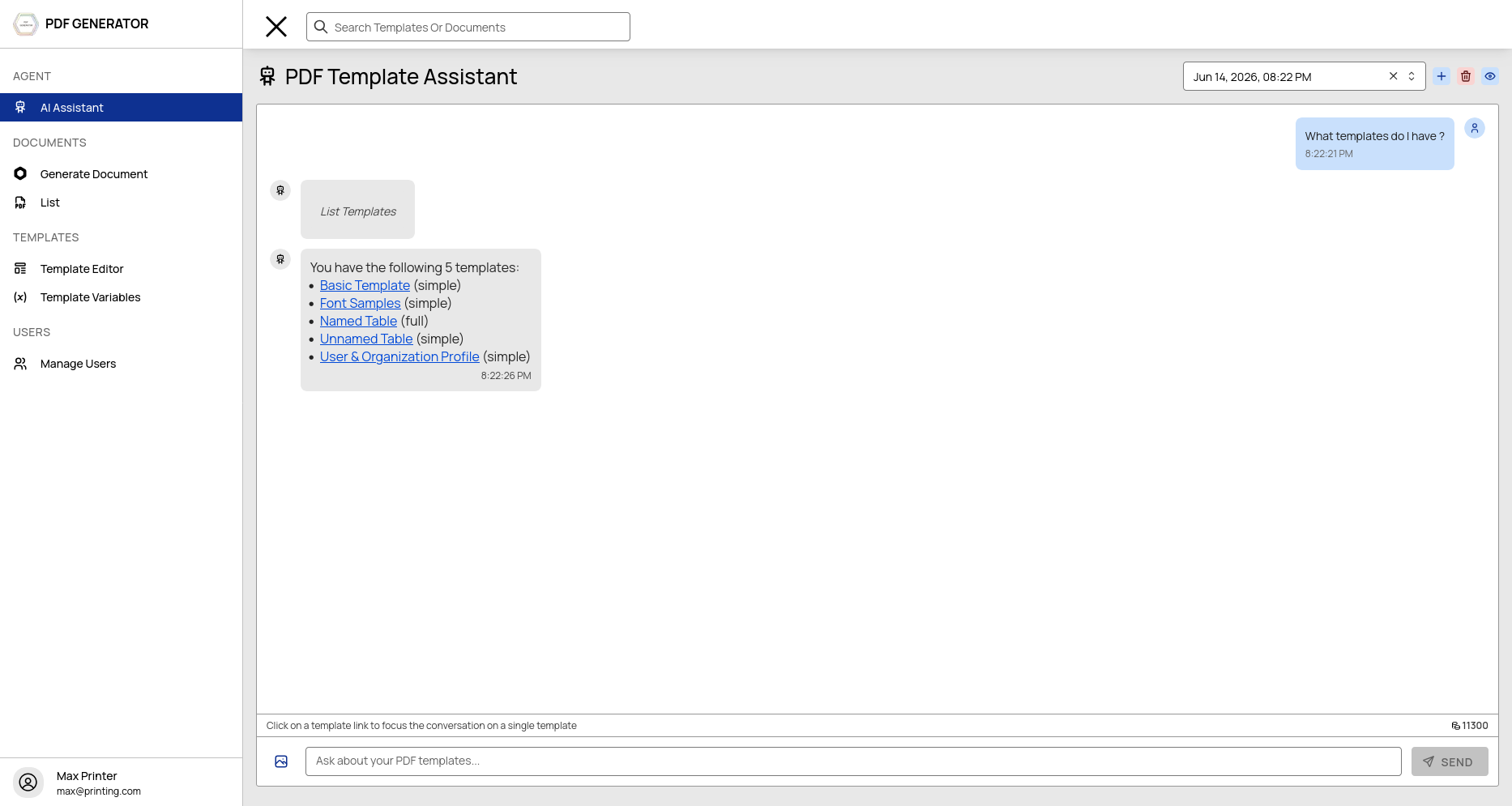
Navigate to AI Assistant from the sidebar. On your first visit, you'll see a welcome screen. Type a message to begin — a new conversation thread is created automatically.
Conversation Threads
Creating Threads
Click New Thread to start a fresh conversation. Each thread maintains its own context and history — the AI remembers what you discussed within a thread.
Switching Threads
Use the thread selector in the sidebar to switch between conversations. Threads are listed with a preview of the first message.
Deleting Threads
Hover over a thread and click the delete icon to remove it. This clears the conversation history for that thread.
Template Focus Mode
Pin the AI to a specific template for context-aware assistance. When a template is focused:
- The AI knows which template you're working on
- File operations default to the focused template
- Variable suggestions are scoped to the template
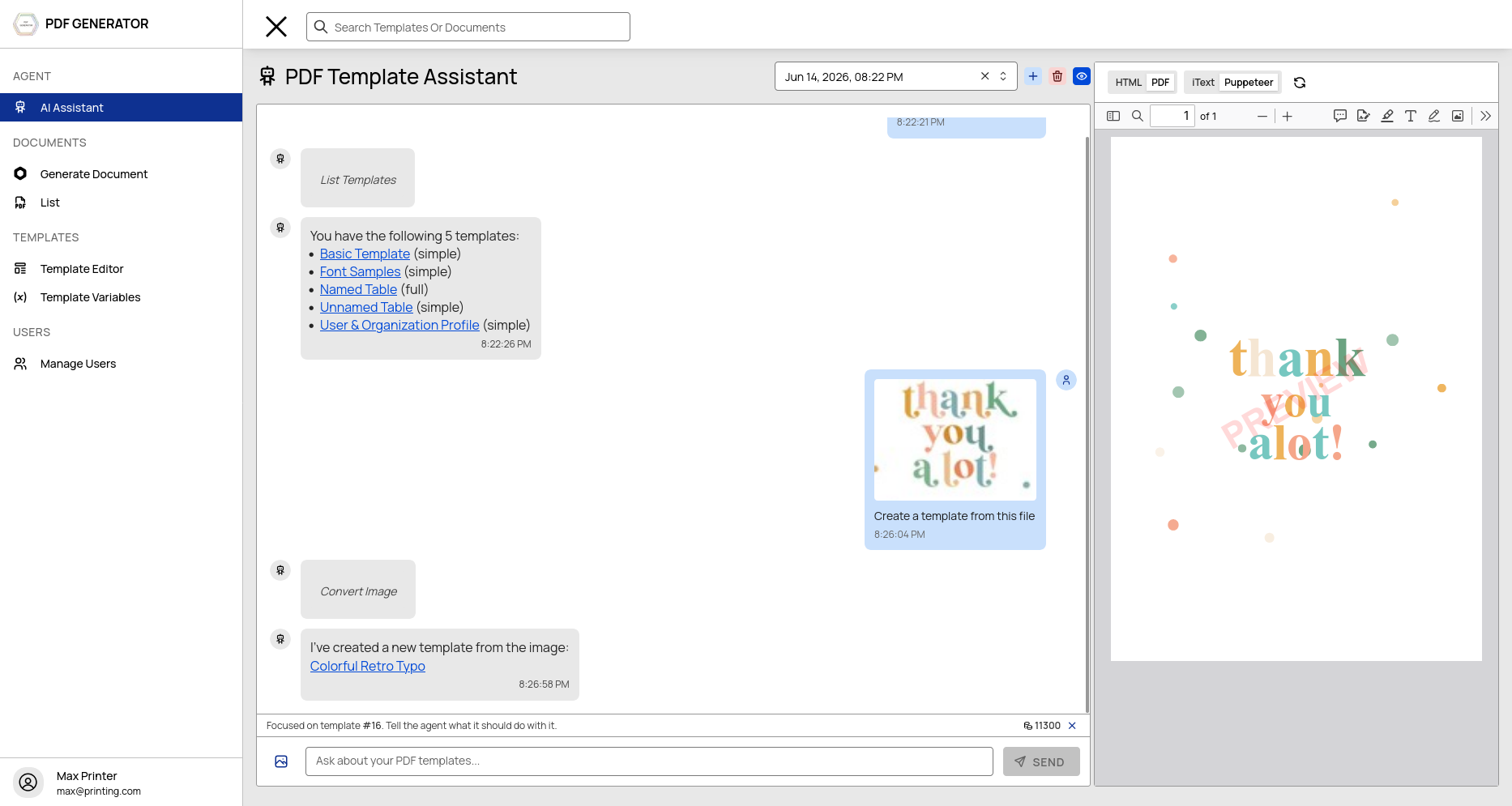
To focus a template, click on a preview link in the conversation.
What the AI Can Do
The AI has tool access to perform these operations:
| Capability | Example Prompts |
|---|---|
| List templates | "Show me all my templates" |
| Create templates | "Create a new invoice template" |
| Update templates | "Change the renderer to Puppeteer for my invoice template" |
| List variables | "What variables does the invoice template have?" |
| Create variables | "Add a variable called customerEmail" |
| Update variables | "Make the totalAmount variable optional" |
| Delete variables | "Remove the oldAddress variable" |
| List files | "Show me the files in my report template" |
| Read files | "Show me the contents of header.html" |
| Edit files | "Add a company logo to the header" |
| Save files | "Save the updated header" |
File Attachments
Upload files for the AI to work with:
- Images — Upload logos, signatures, or reference images
- PDFs — Upload existing PDFs for analysis or conversion
- Text files — Upload data files for variable population
Click the attachment icon in the chat input to upload files. Supported formats: PNG, JPEG, SVG, PDF, TXT, CSV, JSON.
Inline Preview
When the AI makes changes to a template file, an inline preview panel opens on the right side. This lets you see the rendered output side-by-side with the conversation. Toggle the preview panel with the panel button in the chat header.
Credits & Pricing
How Credits Work
- Credits are consumed after each AI response based on token usage
- Larger conversations with longer context consume more credits
Pricing
| Pack | Price | Credits |
|---|---|---|
| Small | €5 | 750 |
| Medium | €10 | 1700 |
| Large | €25 | 4750 |
Purchase credits from your account settings.
Supported AI Providers
| Provider | Model | Notes |
|---|---|---|
| Anthropic | Claude | Default provider |
| OpenRouter | Various | Auto-synced pricing |
| MiniMax | MiniMax models | Custom endpoint |
| DeepSeek | DeepSeek models | Custom endpoint |
The provider is configurable by your system administrator.
Long-Term Memory
The AI remembers preferences and context about your templates across sessions. This is scoped to your user account — memory is not shared across users or organizations.
Tips for Effective Use
- Be specific — "Add a variable called invoiceNumber with data type autonumber" works better than "add a variable"
- Use template focus — Pin the template you're working on so you don't have to specify it in every message
- Review tool calls — Check the AI's actions in the tool call blocks to verify correctness
- Iterate — If the AI doesn't get it right the first time, provide feedback and ask it to adjust