GitHub Sync
Connect your GitHub account to sync template files directly from repositories. Changes pushed to GitHub can automatically update your templates.
Connecting GitHub
Prerequisites
- A GitHub account
- Admin role in your PDF Generator organization
Connection Steps
- Go to Profile → GitHub Settings
- Click Connect GitHub Account
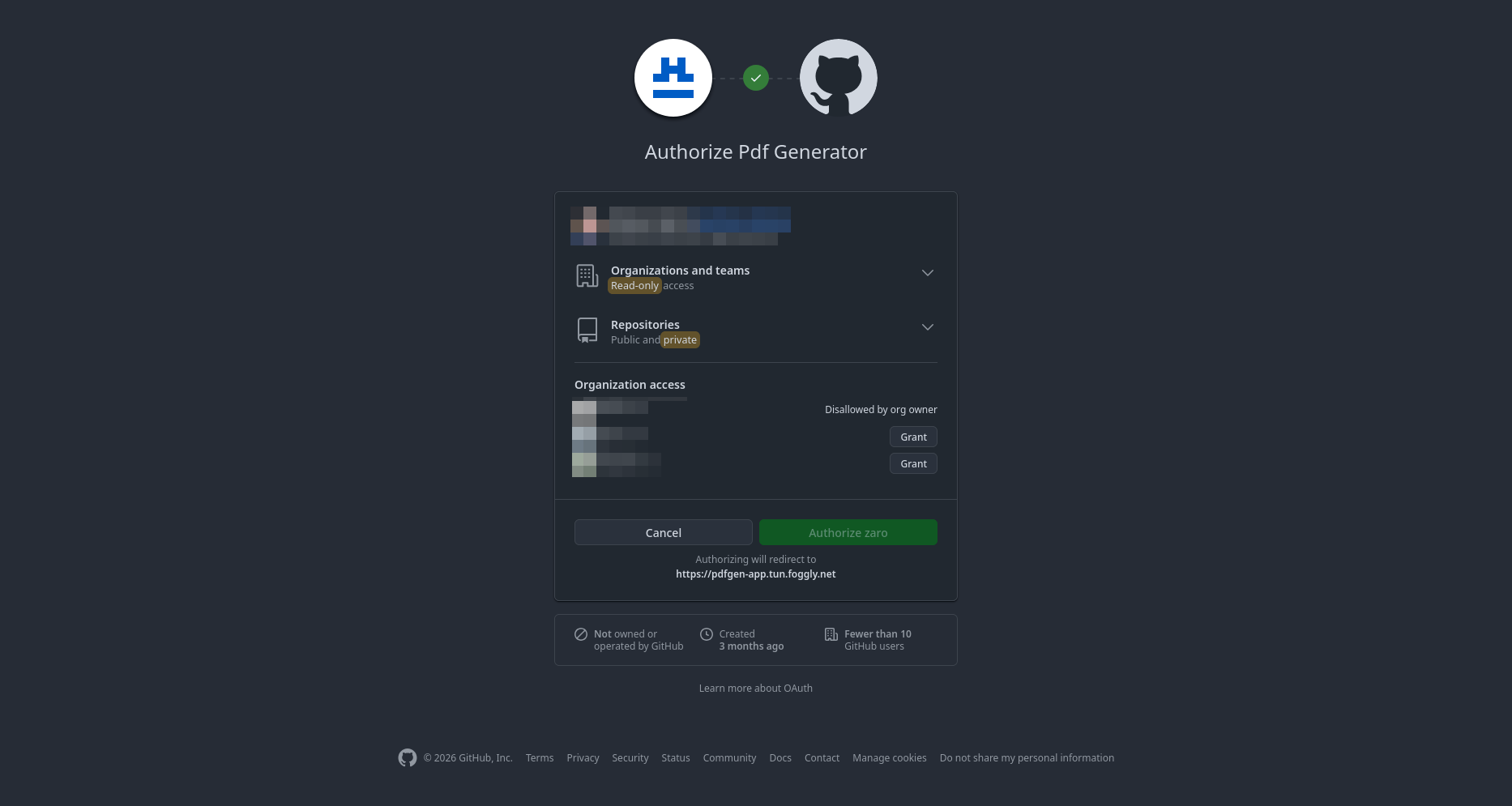
- Authorize the PDF Generator OAuth application on GitHub
- You'll be redirected back — your account is now connected
Connection Status
The GitHub icon in the editor toolbar uses color coding:
| Icon Color | Status |
|---|---|
| Grey | GitHub not connected |
| Dark/Black | Connected, manual sync only |
| Green | Connected, auto-sync active |
Configuring a Template for GitHub Sync
- Open your template in the editor
- Click the GitHub icon in the editor toolbar
- In the GitHub Sync modal, configure:
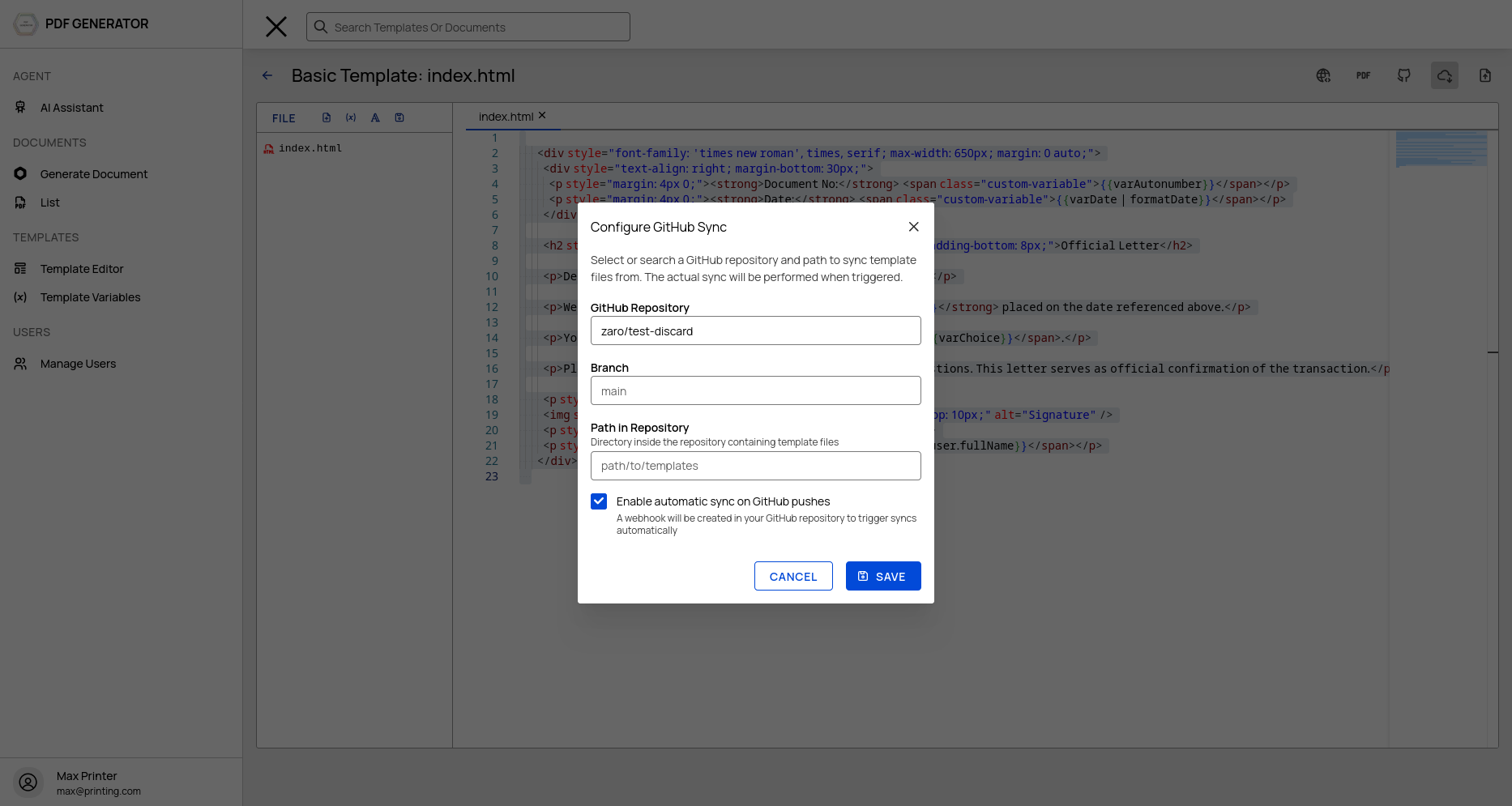
- Repository — Select from your connected GitHub repos (format:
owner/repo) - Path — The directory path within the repo containing your template files (e.g.,
templates/invoice/) - Branch — The branch to sync from (defaults to
main)
Click Save to apply the configuration.
Manual Sync (Copy from GitHub)
When you want to pull the latest files from GitHub:
- Open your template in the editor
- Click the Download icon (only visible when a repo is configured)
- In the Copy from GitHub modal, review the files that will be synced
- Click Sync to start the transfer
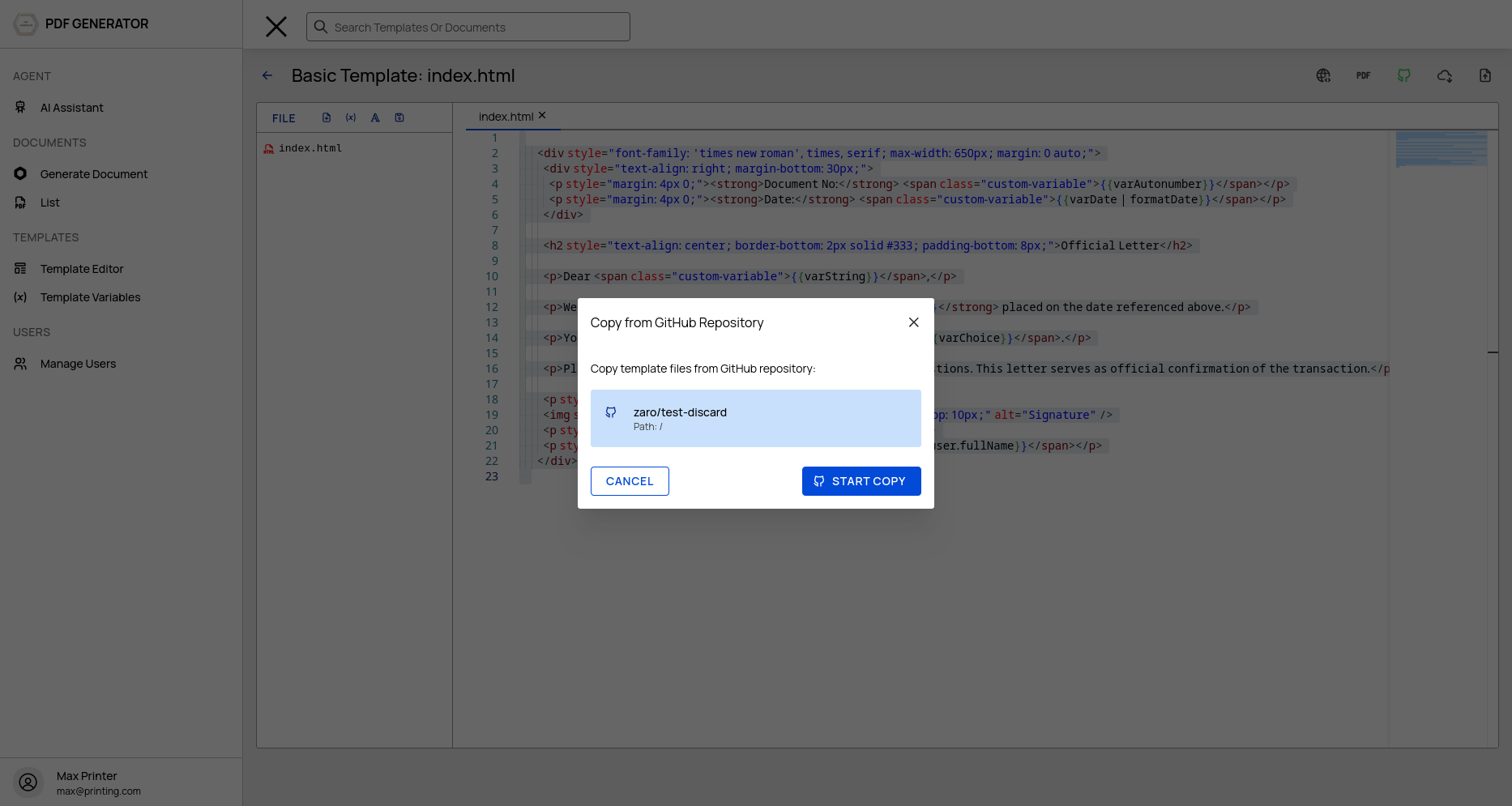
The sync runs as a background job. A progress indicator shows the status:
- Queued — Job is waiting to start
- Processing — Files are being fetched and copied
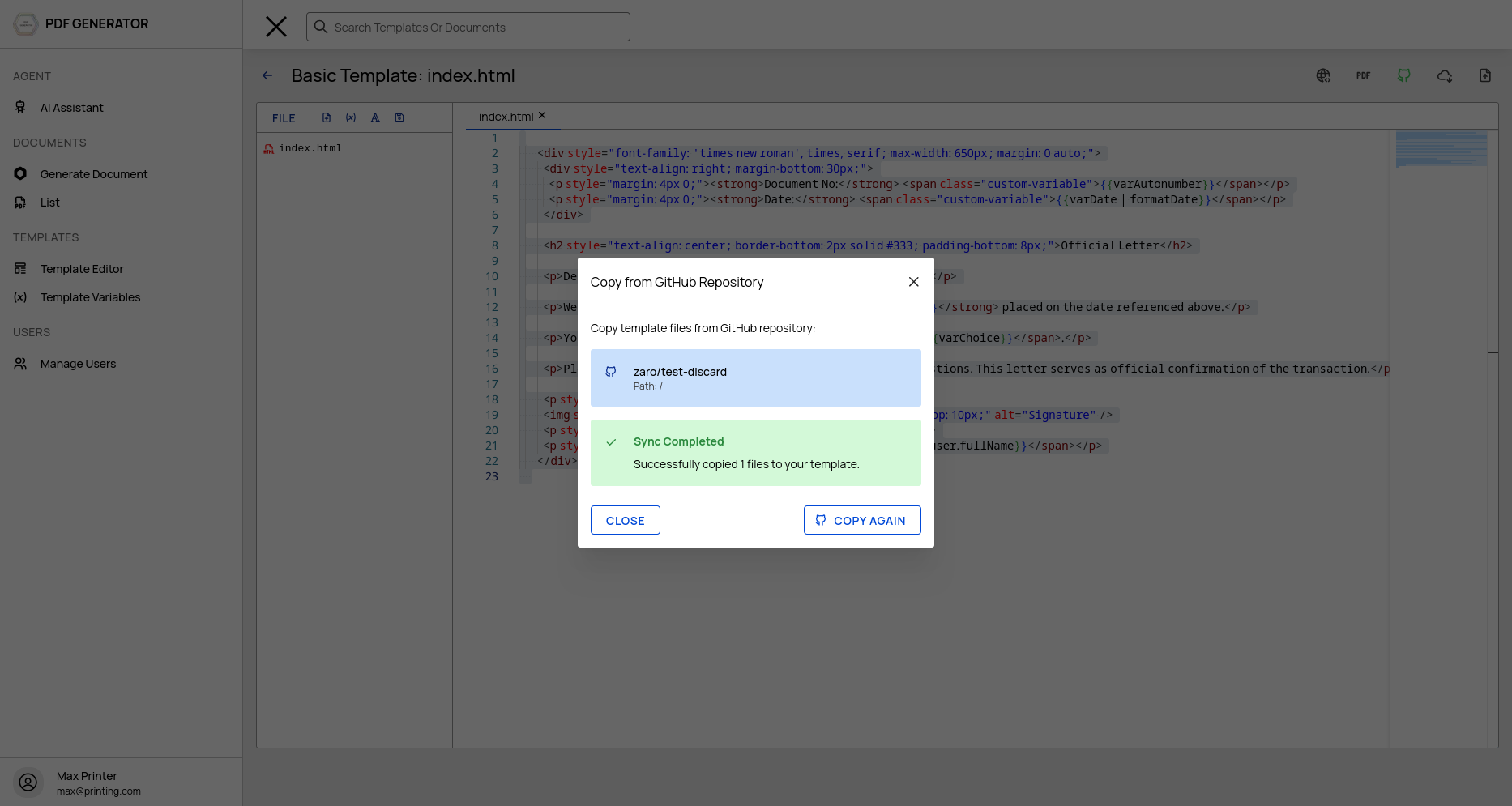
- Completed — Sync finished successfully
- Failed — An error occurred (check the error message)
Auto-Sync on Push (Webhooks)
Enable automatic synchronization so your templates update whenever you push to GitHub.
Enabling Auto-Sync
In the GitHub Sync modal:
- Check Enable automatic sync on GitHub pushes
- Save the configuration
- A webhook is automatically created on your GitHub repository
- The GitHub icon turns green to indicate auto-sync is active
How It Works
- You push changes to the configured branch on GitHub
- GitHub sends a webhook event to PDF Generator
- The webhook is verified using HMAC-SHA256 signature
- All templates linked to that repository/path are updated automatically
- No manual intervention needed
Disabling Auto-Sync
Uncheck the auto-sync option in the GitHub Sync modal. This removes the webhook from your repository and reverts to manual sync only.
Sync Behavior
What Gets Synced
All files in the configured repository path are synced:
.html,.css,.jsfiles become template files- Images and other assets in the path are also copied
What Happens to Existing Files
Existing template files that match filenames from the repo are overwritten. Files in the template that don't exist in the repo are preserved.
File Structure
The directory structure from your repository is preserved in the template file tree. For example:
repo: templates/invoice/
├── header.html
├── index.html
├── footer.html
└── styles/
    └── invoice.css
becomes:
Template
├── header.html
├── index.html
├── footer.html
└── styles/
    └── invoice.css
Troubleshooting
| Issue | Resolution |
|---|---|
| GitHub connection fails | Re-authorize from Profile → GitHub Settings |
| Sync job stays queued | Check that the repository exists and your account has access |
| Files not updating | Verify the branch name is correct and the path exists |
| Webhook not triggering | Re-save the auto-sync config to recreate the webhook |
| Permission denied | Ensure your GitHub account has read access to the repository |