Generating Documents
Once you have a template with defined variables, generating a PDF is straightforward. The document generation flow guides you through filling in variable values, previewing, and downloading.
Selecting a Template
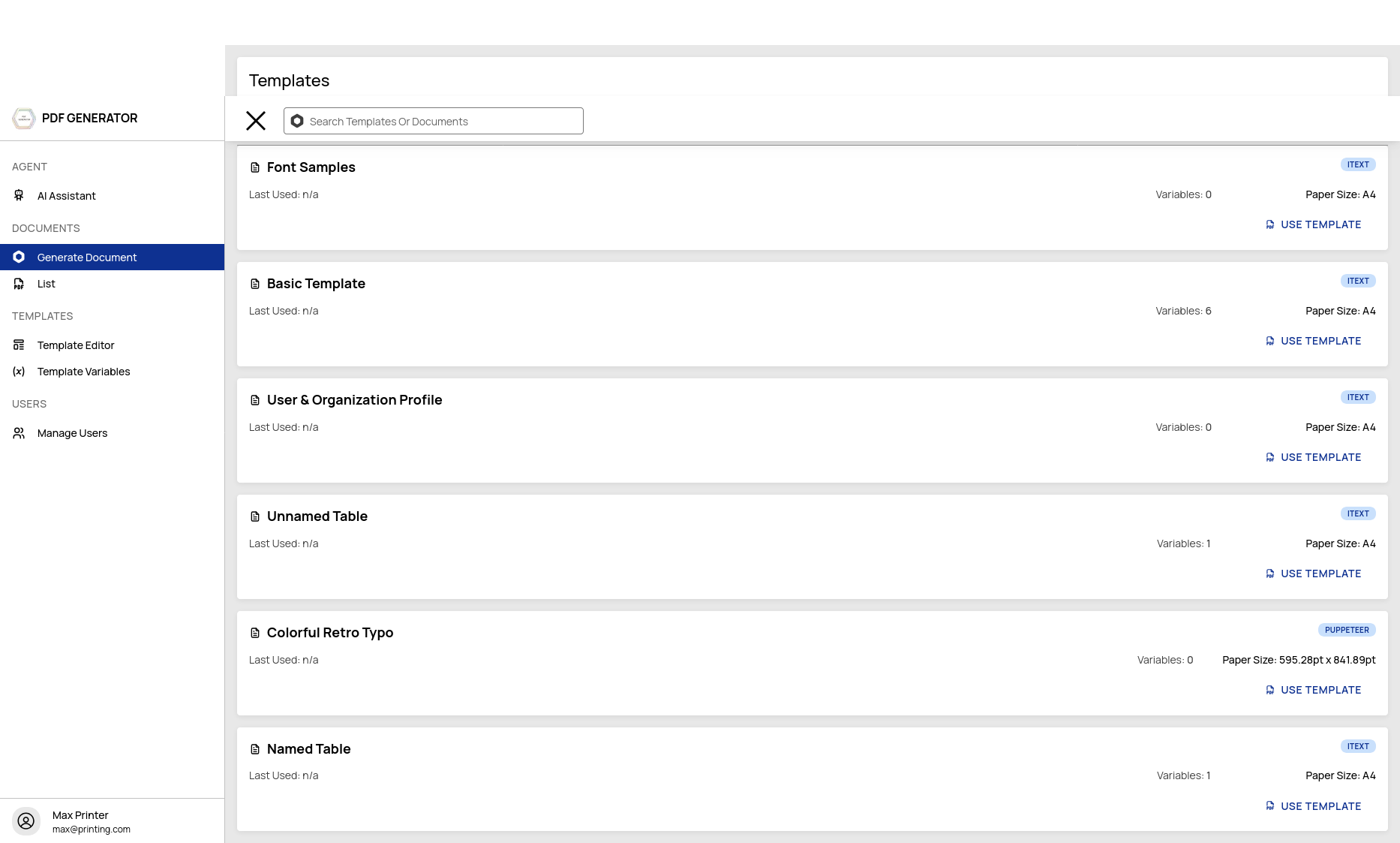
From the Templates dashboard, browse your templates or search by name. Click any template card to open the generation form.
Filling in Variables
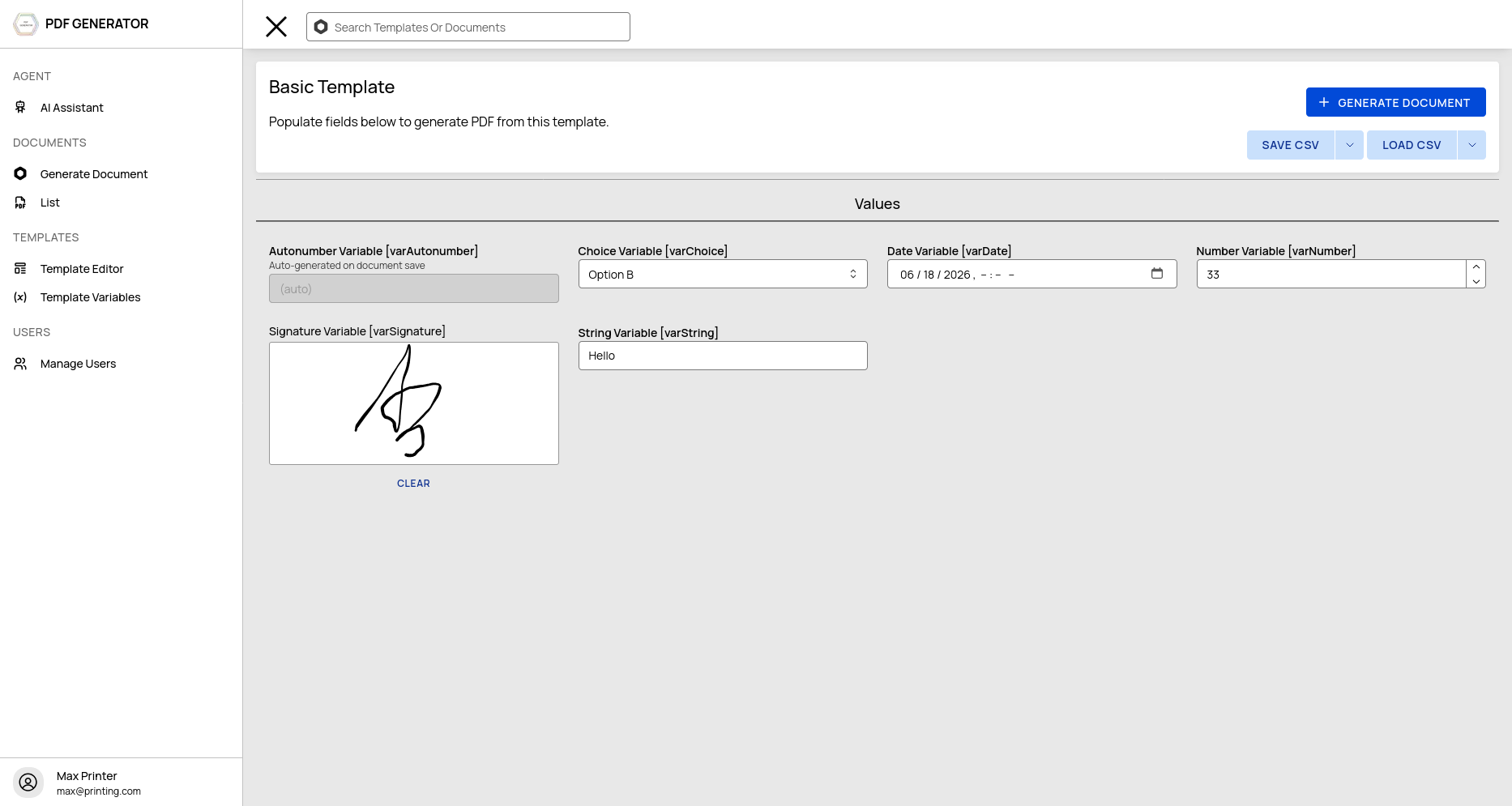
The generation form is automatically built from your template's variable definitions. Each variable type renders an appropriate input:
- String → Text input
- Number → Number input
- Date → Date picker
- Choice → Dropdown selector
- Signature → Signature pad
- Autonumber → Auto-incremented (no manual input)
Object variables expand into multiple fields — one for each defined column. Table variables provide a grid for entering multiple rows of data.
Metadata Defaults
Expand the Defaults section to set PDF metadata values like title, author, subject, and keywords. These values are injected into the generated PDF's metadata.
Generating the PDF
Once your variables are filled in, you have options:
Generate
Click Generate to render the PDF. The PDF is saved to your document history and a download key is returned. You can view the document immediately or access it later from Document History.
Generate & Download
The split button next to Generate offers:
- Generate & Download — Renders and immediately downloads the PDF
- Renderer override — Choose iText or Puppeteer for this specific generation
- Output format selection
Document History
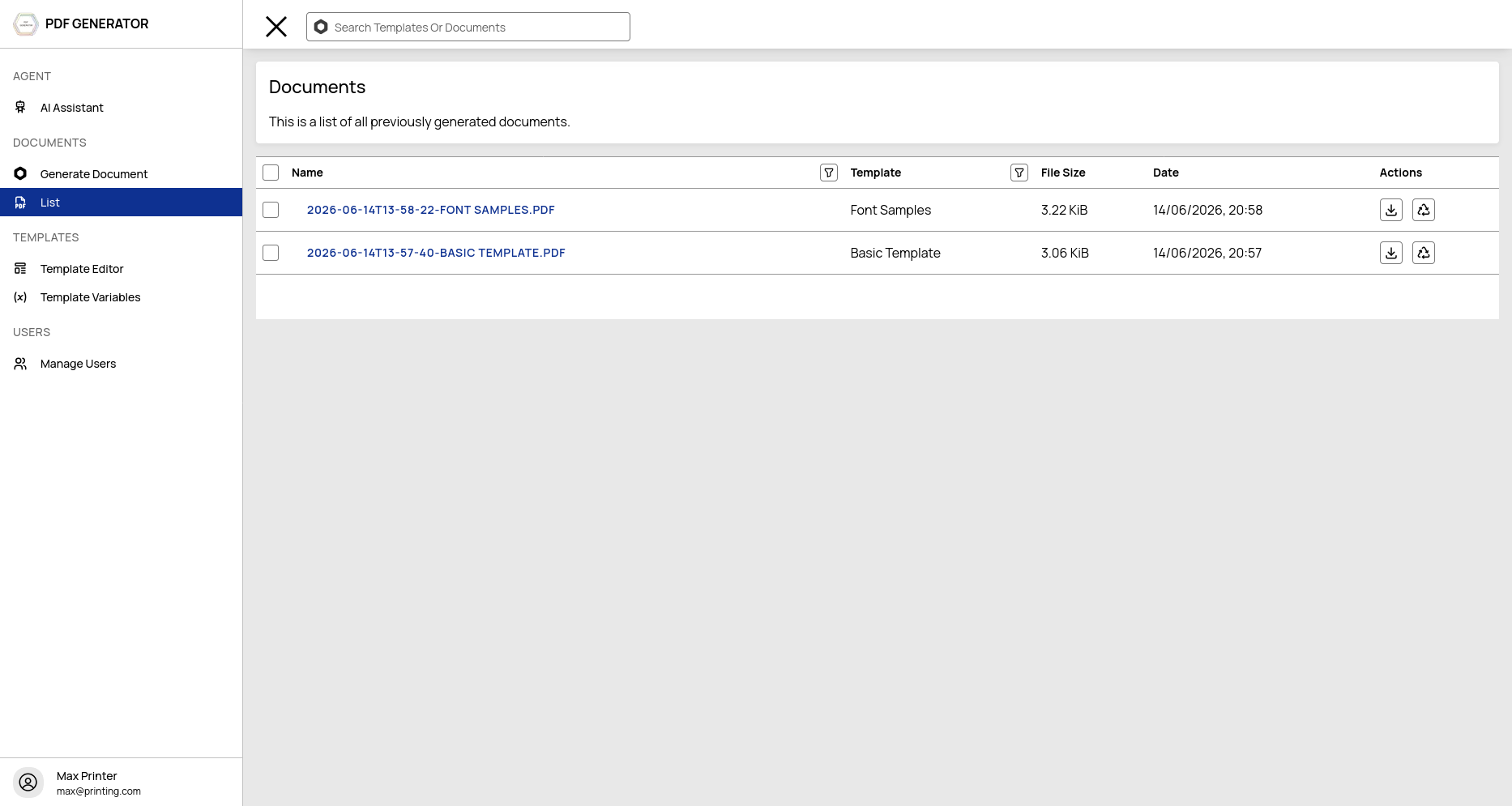
Navigate to Document History from the sidebar to view all previously generated documents.
Features:
- Paginated listing — Browse through all generated documents
- Filter by template — Use the template selector to narrow results
- Search — Filter documents by filename
- Download — Click to download any previously generated PDF
- Timestamps — See when each document was generated
Document Context
When viewing a generated document, you can access the context — the exact variables and values used to generate it. This is useful for:
- Auditing what data went into a document
- Re-generating with similar values
- Debugging template issues
Document Limits
The number of documents you can generate per month depends on your tier:
| Tier | Documents/Month |
|---|---|
| Free | 25 |
| Bronze | 100 |
| Silver | 500 |
| Gold | 2,000 |
Exceeding your limit? Upgrade your plan or purchase credit packs from your account settings.