Template Editor
The template editor is where you design your PDF layout. PDF Generator offers two editors — choose the one that fits your workflow.
Editor Types
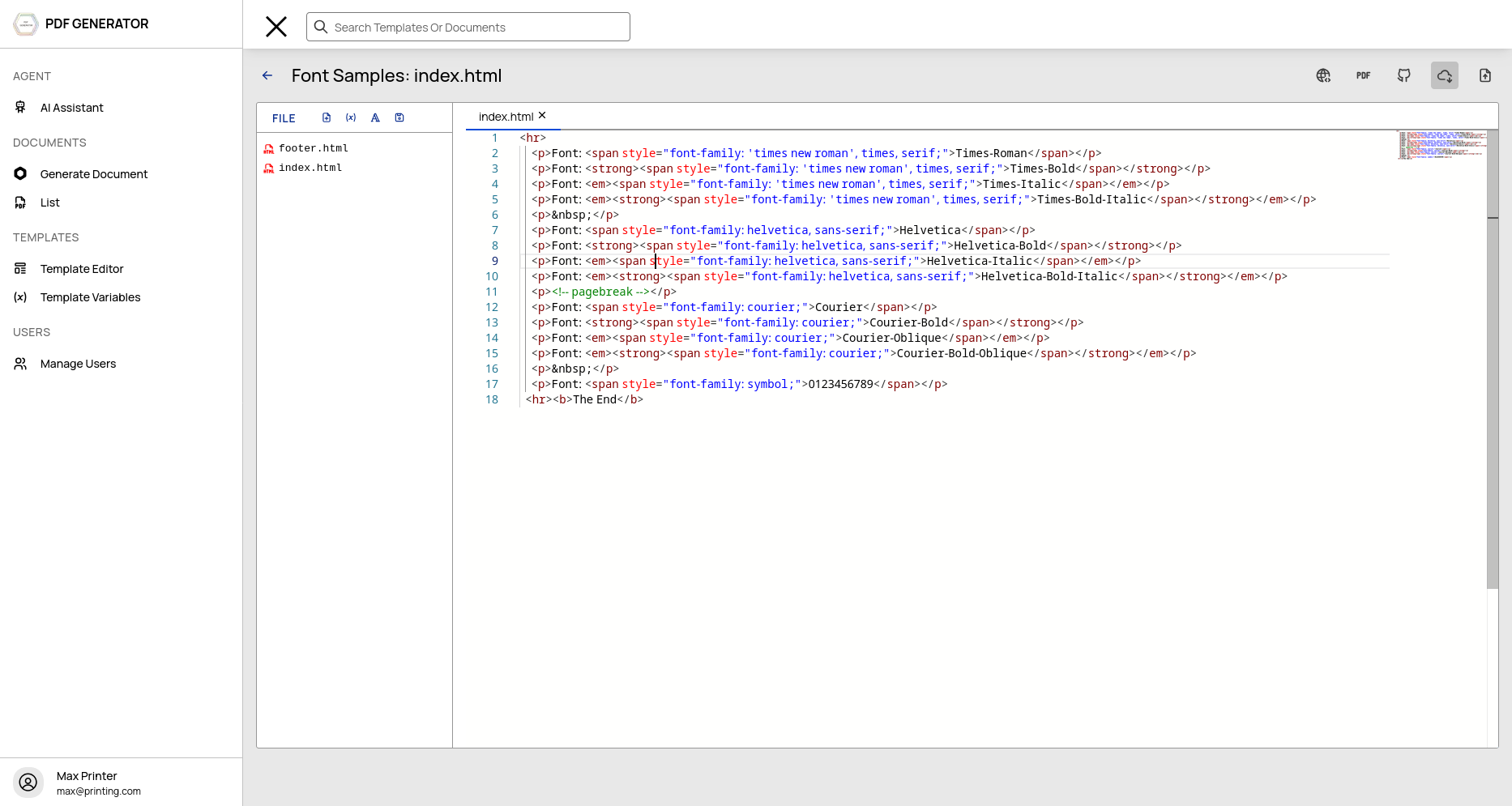
Monaco Code Editor (Full Templates)
The Monaco editor powers VS Code and provides a professional coding experience:
- Syntax highlighting for HTML, CSS, and JavaScript
- Code completion and IntelliSense
- Multi-file support (header.html, index.html, footer.html)
- Find and replace (Ctrl+F / Ctrl+H)
- Command palette (Ctrl+Shift+P)
TinyMCE Rich Text Editor (Simple Templates)
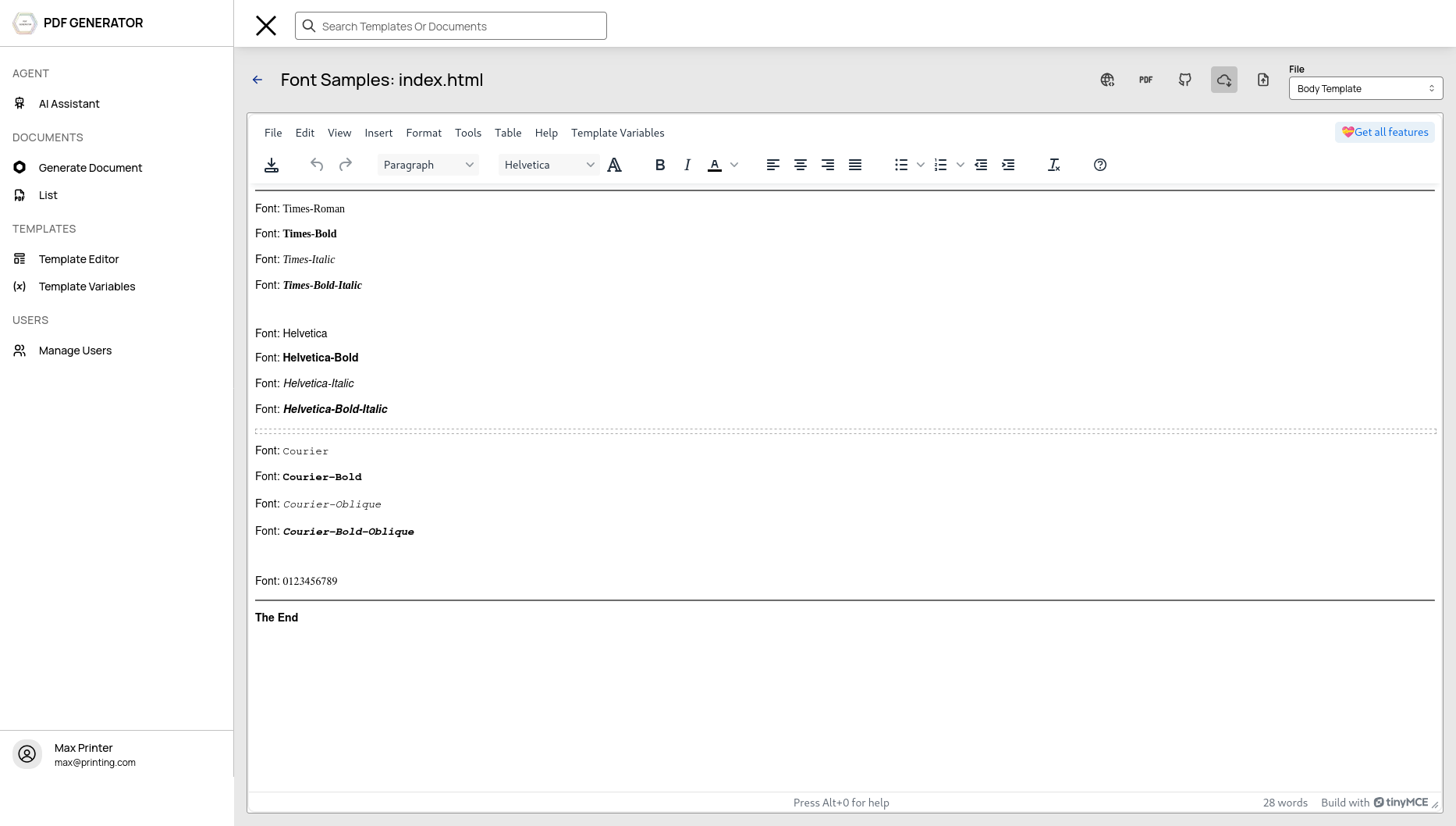
The TinyMCE editor provides a WYSIWYG experience — no HTML knowledge required:
- Rich text formatting toolbar
- Insert images, tables, and links
- Single file editing (index.html)
- Switch to Monaco at any time for advanced editing
File Tree
Full templates use a multi-file structure organized in a sidebar file tree:
📁 Template
├── header.html    (optional)
├── index.html     (body content)
└── footer.html    (optional)
Managing Files
- Create a new file — Click the + New File button, enter a filename
- Rename a file — (coming soon)
- Delete a file — Right-click or use the delete action
- Switch files — Click any file in the tree to open it in the editor
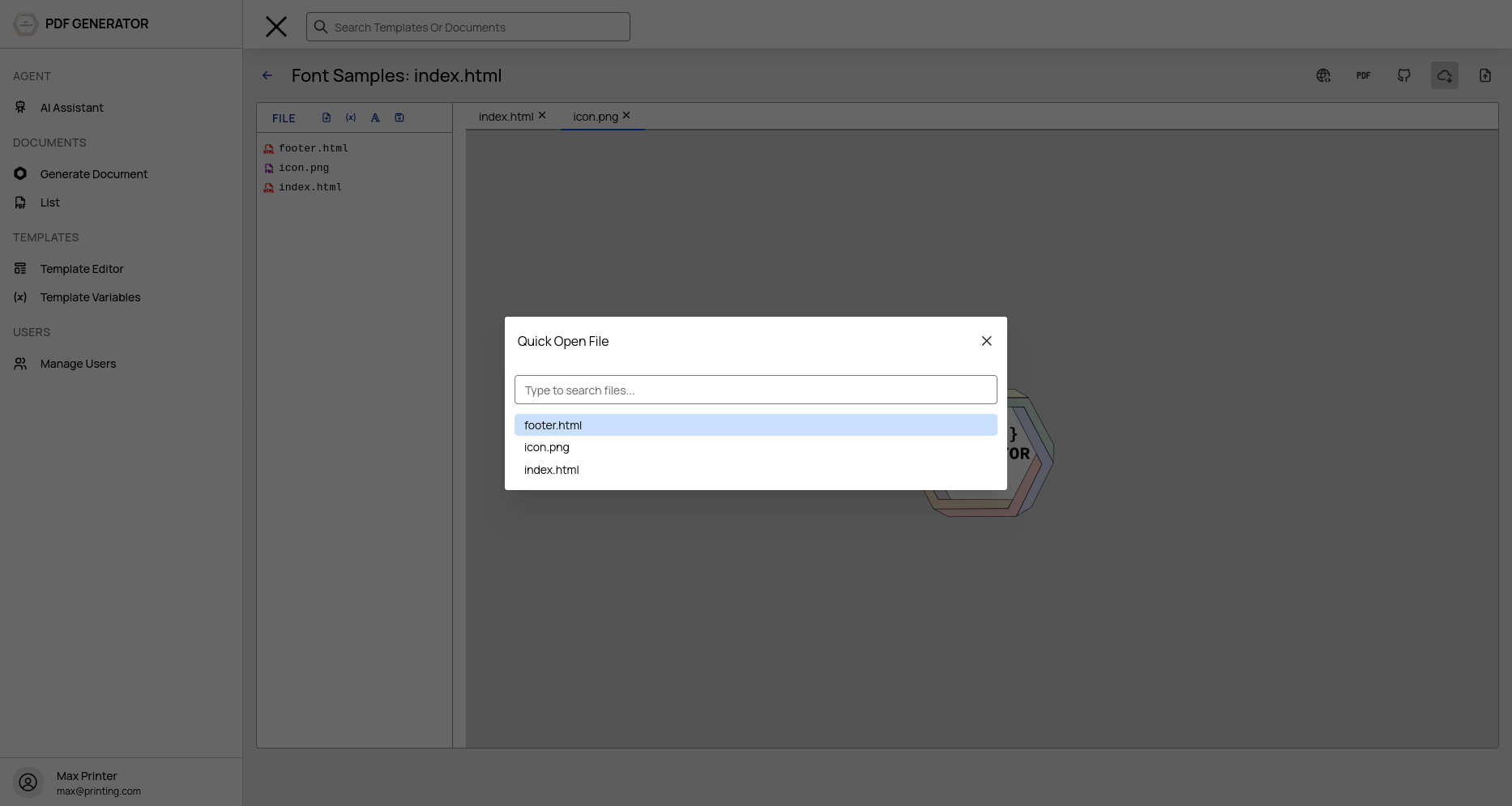
- Quick Open — Press Ctrl+P to search and jump to any file by name
File Selector Dropdown
The header toolbar includes a File dropdown that lists all template files — useful as an alternative to clicking in the file tree.
Importing Files
Import from ZIP
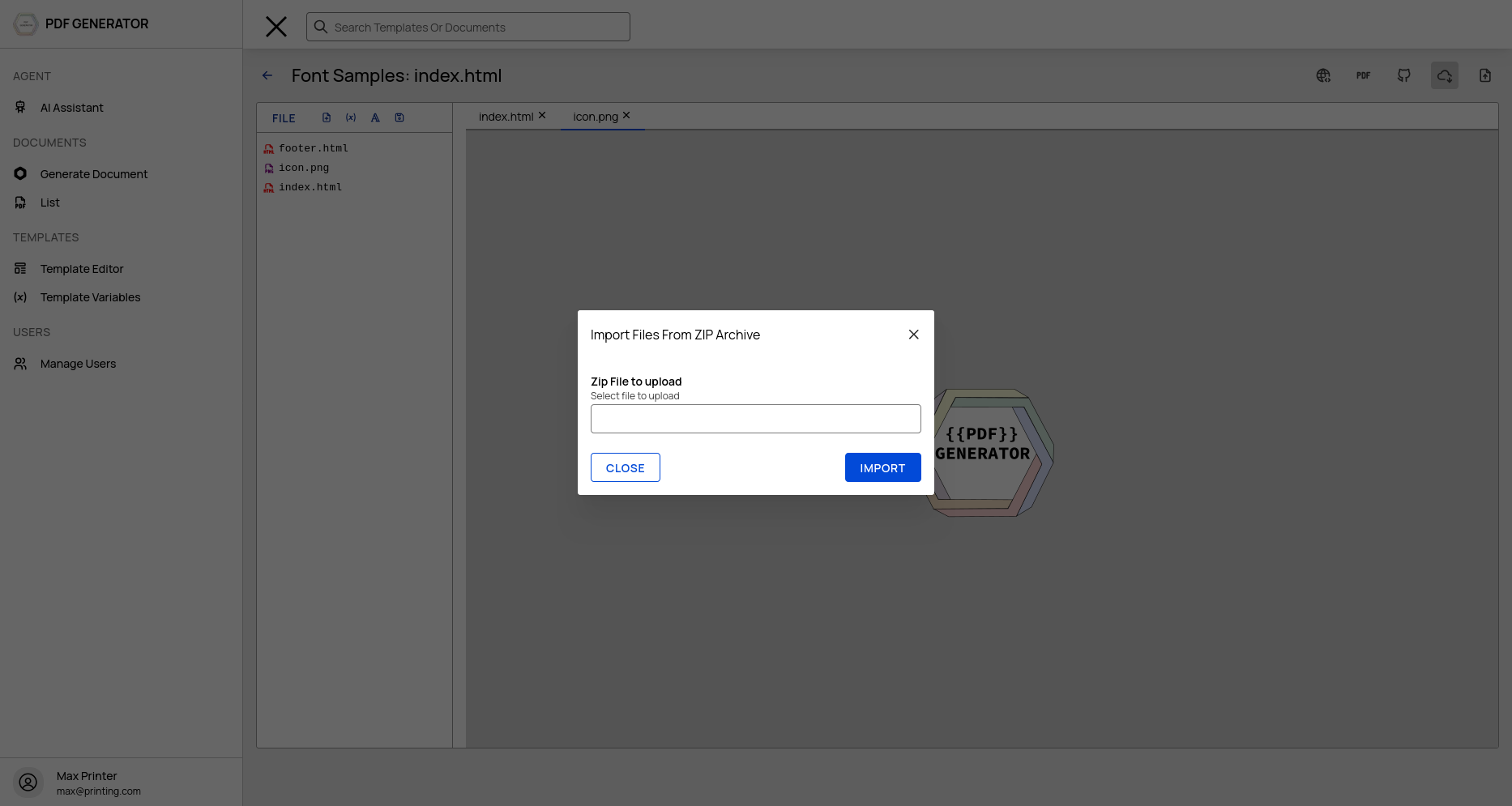
Click the Import ZIP icon in the editor toolbar. Select a .zip archive on your computer. The archive is extracted and all files are added to your template's file tree.
This is useful for:
- Migrating templates from other tools
- Batch-uploading multiple HTML/CSS files
- Restoring template backups
Import from PDF
Available from the Templates list page — convert an existing PDF into an editable template. The system extracts the content and creates a new template from it.
Import from Image
Available from the Templates list page — upload an image to create a template.
Keyboard Shortcuts
| Shortcut | Action |
|---|---|
| Ctrl+P | Quick Open — search and jump to any file |
| Ctrl+Shift+P | Command Palette — access Monaco commands |
| Ctrl+F | Find in current file |
| Ctrl+H | Find and Replace |
| Ctrl+S | Save all files |
| Ctrl+Z / Ctrl+Y | Undo / Redo |
Preview
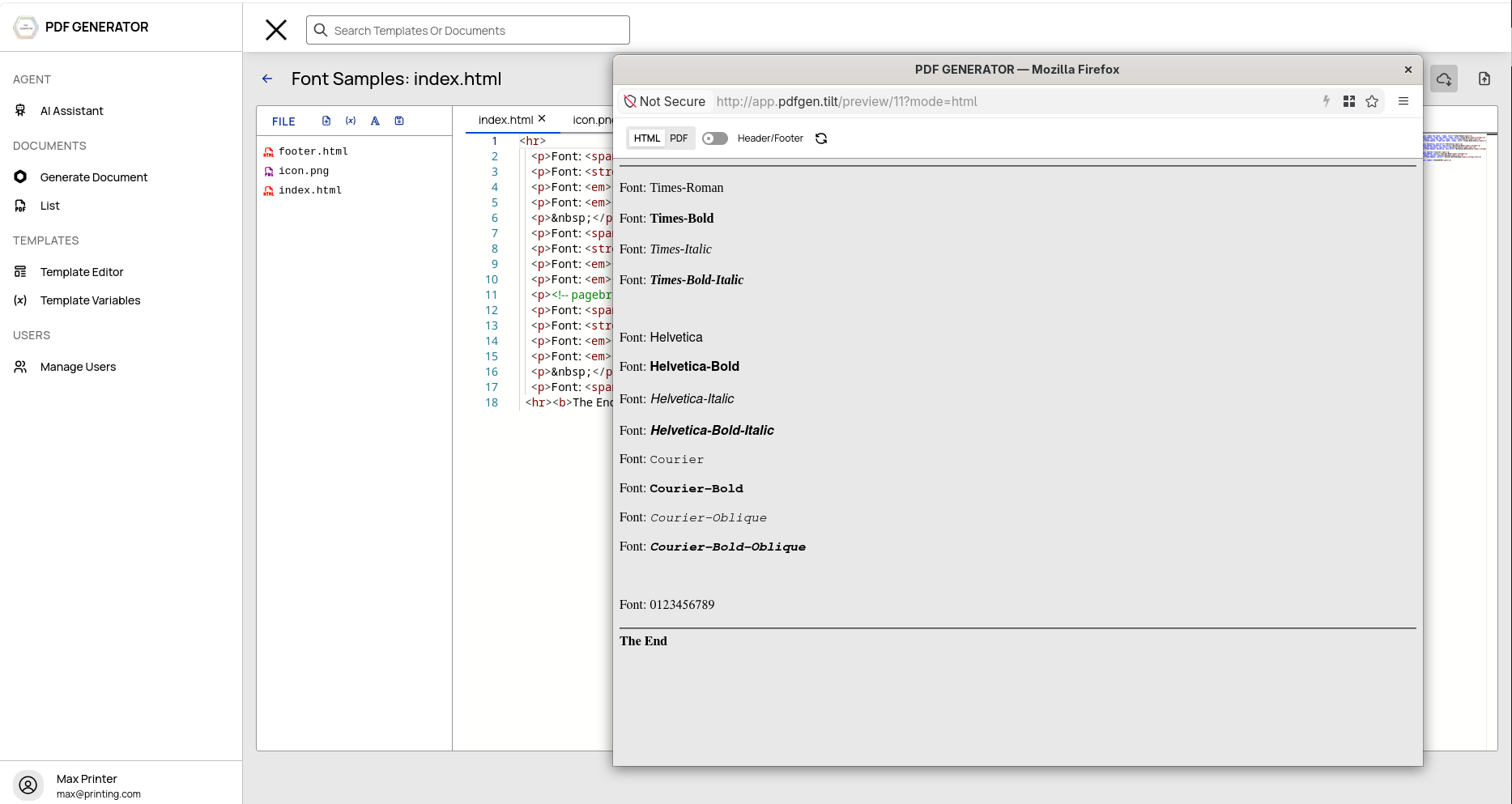
Preview your template in real time to see how it renders. The preview opens in a separate window with its own toolbar.
Opening Preview
Click the HTML preview or PDF preview buttons in the editor toolbar:
- HTML Preview — Renders your template as HTML, with live variable injection
- PDF Preview — Renders your template as a PDF using the configured renderer
Preview Controls
The preview window includes:
- HTML / PDF toggle — Switch between HTML and PDF views
- Renderer selector (PDF mode) — Choose iText or Puppeteer
- Header/Footer toggle (HTML mode) — Show or hide header and footer
- Refresh — Re-render the preview
- Auto-refresh — Preview automatically refreshes when you save files in the editor
Saving
Click the Save button (💾) in the sidebar toolbar, or press Ctrl+S. Saving emits a Server-Sent Event that automatically refreshes any open preview windows.